Prefer using email? Write us at hello@moveshelf.com
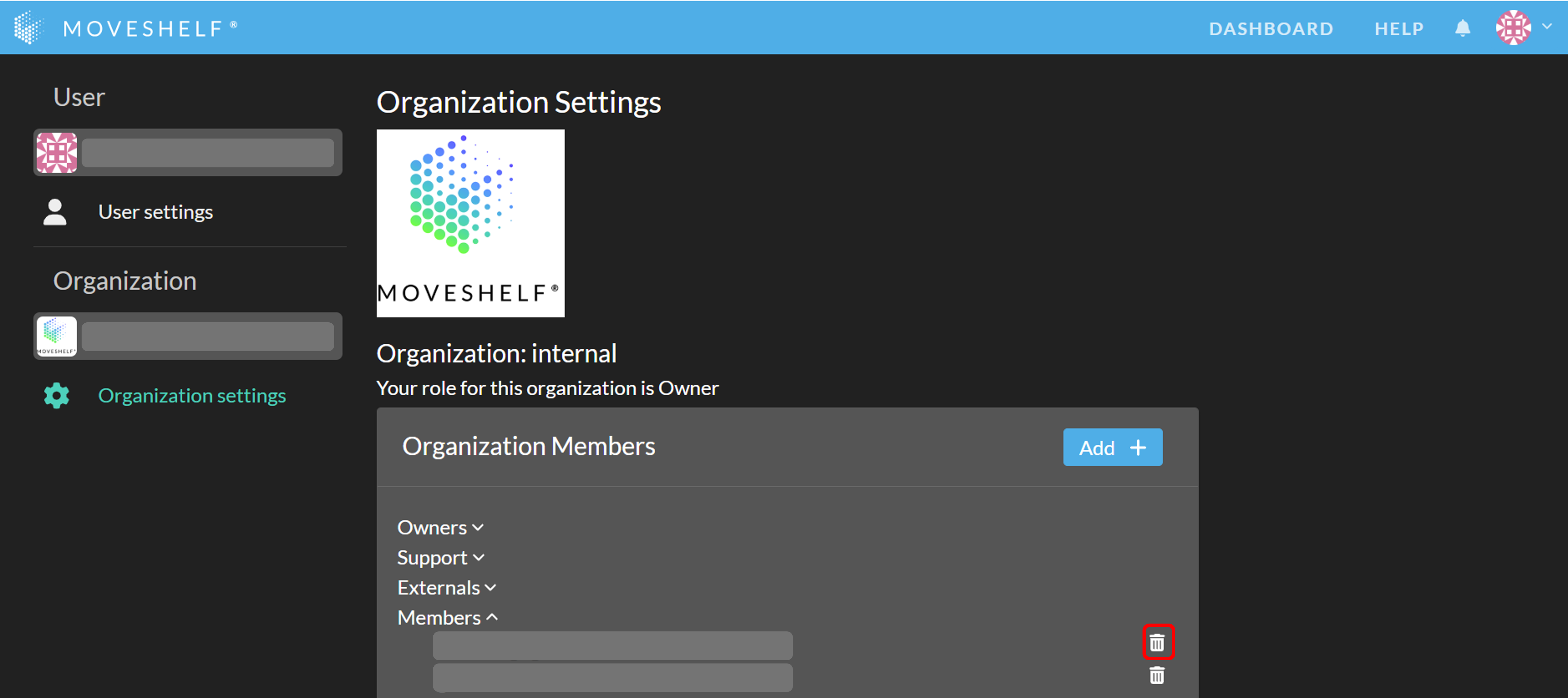
Users can only be removed from an organization by an owner of the organization. Go to the ‘Organization’ page to check who is an owner for your organization (see steps below).
 Note, this will remove the user from the organization and from all projects within it. If you only need to remove a user from a single project, see remove user from a project.